---
title: Business Rules Guide (New!)
description: Autohost Business Rules are your intelligent screening autopilot — customizable mechanisms that automatically evaluate reservations and take instant action based on your criteria. Think of them as you
---
[Skip to content](https://help.autohost.ai/knowledge/comprehensive-new-business-rules-guide#main-content)
English
Show submenu for translations
[Contact us](https://help.autohost.ai/knowledge/kb-tickets/new?hsLang=en)
[](https://www.autohost.ai/?hsLang=en)
Open main navigation
Close main navigation
- English
Show submenu for translations
- [Contact us](https://help.autohost.ai/knowledge/kb-tickets/new)
- [AI Agent](https://www.autohost.ai/chat)
[AI Agent](https://www.autohost.ai/chat?hsLang=en)
How can we help you?
- There are no suggestions because the search field is empty.
1. [Autohost Help Center](https://help.autohost.ai/knowledge?hsLang=en)
2. [Verifications and Risk](https://help.autohost.ai/knowledge/verifications-and-risk?hsLang=en)
3. [Screening Assistant Settings](https://help.autohost.ai/knowledge/verifications-and-risk?hsLang=en#screening-assistant-settings)
# Business Rules Guide (New!)
### What are Business Rules?
Autohost Business Rules are your intelligent screening autopilot — customizable mechanisms that automatically evaluate reservations and take instant action based on your criteria. Think of them as your 24/7 risk management team that never needs a coffee break.
### How they work
Business Rules follow a simple IF-THEN logic: IF certain conditions are met, THEN take a specific action. This creates sophisticated screening workflows that go beyond basic approve/decline decisions.
**The Process:**
- **Analyze** - Evaluate multiple data points simultaneously across different verification sources
- **Decide** - Process conditions using your custom criteria
- **Act** - Trigger automated actions instantly without manual intervention
### Available Actions
When conditions are met, automatically:
- **Flag for Review** - Route to your team for manual assessment
- **Approve Reservation** - Fast-track trusted guests
- **Decline Reservation** - Reject high-risk bookings with custom messaging
- **Send Notification** - Trigger communications to guests or staff
- **Override ID Check** - Bypass verification for specific scenarios
Create everything from simple "auto-approve repeat guests" rules to complex multi-factor risk assessments—all while maintaining the guest experience that keeps your properties competitive.
### Step by Step Rule Creation
1. Go to Screening Assistant \> Business Rules, from your Autohost Dashboard
1. Click to "ADD RULE".
2. Your new rule will appear (disabled) at the bottom of your list of business rules, as seen below.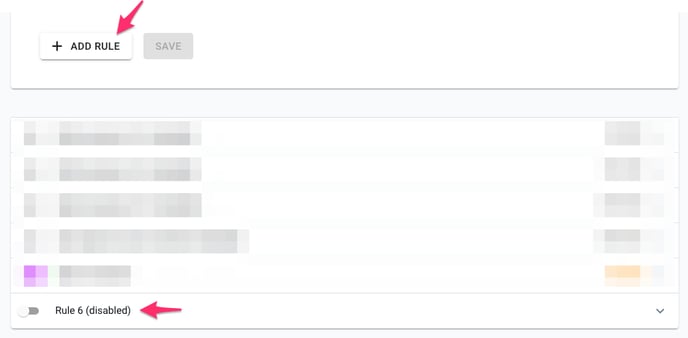
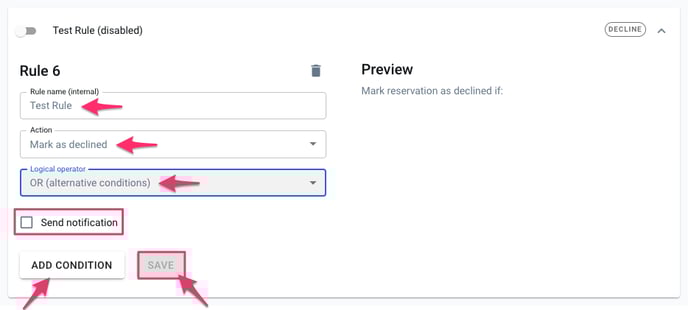
2. Give your rule a name, and add an action and a logical operator.
1. **Rule Name:** This is an internal name only and is meant to describe the business rule to your team.
2. **Action:** Choose your desired outcome
1. Flag for review
2. Approve reservation
3. Decline reservation
4. Send notification
5. Override ID Check
3. **Logical Operator:** Select AND or OR
1. Use "AND" to add multiple conditions to your business rule or use "OR" to use alternative conditions.
4. Check the box if you want to receive a notification when your business rule is triggered.
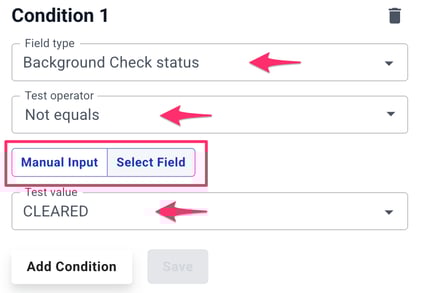
3. Add your Conditions
1. Select Field Type
- Choose from over 70 available fields
2. Choose Test Operator - options will vary based on the Field Type
- Equals/Not equals
- Less than/Great than
- Contains/Does not contain
- Starts with/Ends with
3. Select Manual Input or Select Field and enter Test Value
- Manual Input for custom values
- Select Field to compare Field Type to a specific field value
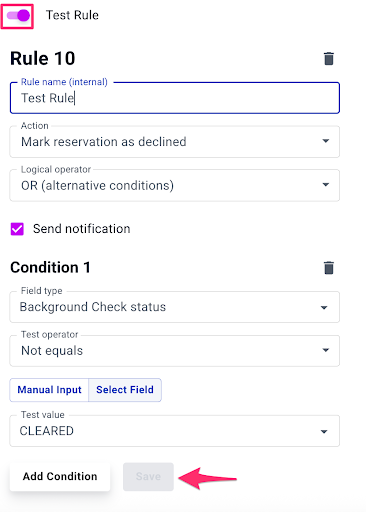
4. Once "Condition 1" has been filled out, either click to add another condition or enable your business rule (via the toggle beside the name) and save your business rule.
### 🚀 Advanced Configuration Examples
#### **Example 1: Smart Address Verification Magic ✅**
Boost trust with intelligent address matching!
- Seamlessly compare ID zip code with credit card zip code
- When they don't match, our system smartly flags for quick review
- Level up with distance calculations for even more precision
- *Result: Enhanced security that feels effortless!*
#### Example 2: Age & Purpose Verification That Works 🎯
Create the perfect guest experience with smart restrictions!
- Automatically verify guests are 21+ for age-restricted properties
- Intelligently screen booking purposes to maintain property standards
- Smooth, automated decisions that protect your business
- *Result: Peace of mind with zero manual effort!*
### Supported Field Categories
#### Verification Fields
| Label | Description |
| --- | --- |
| Adverse media risky categories (number) | Number of adverse media risky categories found for the guest |
| Adverse media risk category | Category of adverse media risk identified |
| Credit score (number) | Guest's credit score |
| Name mismatch | Whether there is a mismatch in the guest's name |
| Risk color | Color-coded risk assessment |
| Sex offender results found | Whether sex offender results were found |
| Global Watchlist results found | Whether watchlist results were found |
| Fraud Detection status | Status of the fraud detection check |
| Background Check status | Status of the background check |
#### Reservation Fields
| Label | Description |
| --- | --- |
| Booking source | Source of the booking |
| Day of week (check in) | Day of the week for check-in |
| Guest age | Age of the guest |
| Guest birthday during stay | Whether guest's birthday occurs during the stay |
| Guest bio | Guest's biography or description |
| Guest count | Number of guests |
| Guest email | Email address of the guest |
| Guest on blacklist | Whether the guest is on the blacklist |
| Guest experiences | Guest's stated experiences for the stay |
| Purpose of stay | Category of stay purpose |
| Lead time (days) | Number of days between booking and check-in |
| Number of nights | Duration of stay in nights |
#### Listing Fields
| Label | Description |
| --- | --- |
| Building | Building where the listing is located |
| Listing city | City where the listing is located |
| Listing occupancy | Maximum occupancy of the listing |
| Listing ID | Unique identifier for the listing |
#### Locality Fields
| Label | Description |
| --- | --- |
| Guest distance from listing (KM) | Distance between guest and listing in kilometers |
| Guest GeoIP distance from listing (KM) | Distance based on guest's IP address |
| Guest billing address distance from listing (KM) | Distance based on guest's billing address |
| Guest browser location distance from listing (KM) | Distance based on guest's browser location |
| Guest uploaded image location distance from listing (KM) | Distance based on guest's uploaded image location |
| Guest home address distance from listing (KM) | Distance based on guest's home address |
| Guest OTA-provided home address distance from listing (KM) | Distance based on address provided by OTA |
#### Stripe Fields
| Label | Description |
| --- | --- |
| Credit card declines (number) | Number of credit card declines |
| Credit card decline reason | Reason for credit card decline |
| Credit card country code | Country code of the credit card |
| Credit card address validation status | Stripe's validation status for the credit card address |
| Credit card postal code validation status | Stripe's validation status for the credit card postal code |
| Credit card CVC validation status | Stripe's validation status for the credit card CVC |
#### Credit Card Fields
| Label | Description |
| --- | --- |
| Credit card billing state code | State code from the credit card billing address |
| Credit card billing country code | Country code from the credit card billing address |
| Credit card billing zip or postal code | Zip/postal code from the credit card billing address |
#### Payment Events Fields
| Label | Description |
| --- | --- |
| 3D Secure | 3D Secure status in payment events |
| Network status code | Network status code in payment events |
| Event status | Event status in payment events |
| Event type | Event type in payment events |
| Card type | Card type in payment events |
| Card provider | Card provider in payment events |
| Card country code | Card country code in payment events |
| Card CVC check | Card CVC check in payment events |
| Card postal code check | Card postal code check in payment events |
| Card line1 check | Card line1 check in payment events |
| Billing country code | Billing country code in payment events |
| Billing state code | Billing state code in payment events |
| Currency | Currency in payment events |
| Charges amount sum | Sum of charges in payment events |
| Authorization amount sum | Sum of authorizations in payment events |
| Dispute amount sum | Sum of disputes in payment events |
#### ID Check Fields
| Label | Description |
| --- | --- |
| Identification document type | Type of identification document provided |
| Identification country code | Country code of the identification document |
| Identification state code | State code from the identification document |
| Identification zip or postal code | Zip/postal code from the identification document |
| ID Check status | Status of the ID verification check |
| ID check attempts | Number of ID checks performed |
| ID check image processing status | Overall status of AI processing for ID document images |
| ID check backside barcode detected | Status of barcode detection on back side of ID |
| ID check front side glare detected | Status of glare detection on front side of ID |
| ID check back side glare detected | Status of glare detection on back side of ID |
| ID check front side blur detected | Status of blur detection on front side of ID |
| ID check back side blur detected | Status of blur detection on back side of ID |
| Failed ID Check verifications | List of ID checks that failed |
| Successful ID Check verifications | List of ID checks that passed |
| Number of ID checks that failed | Number of ID checks that failed |
| Number of successful ID Check verifications | Number of ID checks that passed |
### Important Considerations
#### Parsing Requirements
- Business rules depend on successful information parsing
- Not all fields may be consistently available
- System will skip rules if critical information is missing
#### Best Practices
- Start with simple, clear rules
- Gradually add complexity
- Use review flags instead of automatic declines
- Regularly audit and update rules
- Consider edge cases and potential guest experience impact
#### Limitations and Recommendations
- Manual review is always recommended
- Avoid overly restrictive rules
- Balance risk management with guest experience
- Continuously refine your approach
#### Getting Started
1. Review available fields
2. Identify your specific risk management needs
3. Create initial rules
4. Monitor and adjust
#### Need Help?
Contact Autohost support for personalized guidance on implementing business rules.
- [Getting Started](https://help.autohost.ai/knowledge/getting-started?hsLang=en#main-content)
- [Apaleo](https://help.autohost.ai/knowledge/getting-started?hsLang=en#apaleo)
- [Cloudbeds](https://help.autohost.ai/knowledge/getting-started?hsLang=en#cloudbeds)
- [Escapia](https://help.autohost.ai/knowledge/getting-started?hsLang=en#escapia)
- [Guesty](https://help.autohost.ai/knowledge/getting-started?hsLang=en#guesty)
- [Hospitable](https://help.autohost.ai/knowledge/getting-started?hsLang=en#hospitable)
- [Hostaway](https://help.autohost.ai/knowledge/getting-started?hsLang=en#hostaway)
- [Hostfully](https://help.autohost.ai/knowledge/getting-started?hsLang=en#hostfully)
- [Mews](https://help.autohost.ai/knowledge/getting-started?hsLang=en#mews)
- [Streamline](https://help.autohost.ai/knowledge/getting-started?hsLang=en#streamline)
- [Track](https://help.autohost.ai/knowledge/getting-started?hsLang=en#track)
- [Account Settings](https://help.autohost.ai/knowledge/account-settings?hsLang=en#main-content)
- [User Accounts](https://help.autohost.ai/knowledge/account-settings?hsLang=en#user-accounts)
- [Settings](https://help.autohost.ai/knowledge/account-settings?hsLang=en#settings)
- [Billing](https://help.autohost.ai/knowledge/account-settings?hsLang=en#billing)
- [Integrations](https://help.autohost.ai/knowledge/account-settings?hsLang=en#integrations)
- [Data & Reports](https://help.autohost.ai/knowledge/account-settings?hsLang=en#data-reports)
- [Verifications and Risk](https://help.autohost.ai/knowledge/verifications-and-risk?hsLang=en#main-content)
- [Screening AI](https://help.autohost.ai/knowledge/verifications-and-risk?hsLang=en#screening-ai)
- [Screening Assistant Settings](https://help.autohost.ai/knowledge/verifications-and-risk?hsLang=en#screening-assistant-settings)
- [Types of Verifications and Checks](https://help.autohost.ai/knowledge/verifications-and-risk?hsLang=en#types-of-verifications-and-checks)
- [Listings](https://help.autohost.ai/knowledge/listings?hsLang=en)
- [Message Setup](https://help.autohost.ai/knowledge/message-setup?hsLang=en)
- [Guest Portal Setup](https://help.autohost.ai/knowledge/guest-portal-setup?hsLang=en#main-content)
- [Guest Portal Settings](https://help.autohost.ai/knowledge/guest-portal-setup?hsLang=en#guest-portal-settings)
- [Guest Portal Screen Configuration](https://help.autohost.ai/knowledge/guest-portal-setup?hsLang=en#guest-portal-screen-configuration)
- [Managing Reservations](https://help.autohost.ai/knowledge/managing-reservations?hsLang=en)
- [Autohost Product & Policies](https://help.autohost.ai/knowledge/autohost-product-policies?hsLang=en#main-content)
- [Privacy & Risk](https://help.autohost.ai/knowledge/autohost-product-policies?hsLang=en#privacy-risk)
- [Booking Channels (OTA)](https://help.autohost.ai/knowledge/autohost-product-policies?hsLang=en#booking-channels-ota)
- [Product Release Notes](https://help.autohost.ai/knowledge/autohost-product-policies?hsLang=en#product-release-notes)
- [FAQ](https://help.autohost.ai/knowledge/faq?hsLang=en#main-content)
- [Account, User & Payment FAQs](https://help.autohost.ai/knowledge/faq?hsLang=en#account-user-payment-faqs)
- [Reservation Management FAQs](https://help.autohost.ai/knowledge/faq?hsLang=en#reservation-management-faqs)
- [Product FAQs](https://help.autohost.ai/knowledge/faq?hsLang=en#product-faqs)
- [PMS & OTA FAQs](https://help.autohost.ai/knowledge/faq?hsLang=en#pms-ota-faqs)
- [Guest FAQs](https://help.autohost.ai/knowledge/faq?hsLang=en#guest-faqs)
- [Autohost SDK](https://help.autohost.ai/knowledge/autohost-sdk?hsLang=en)
[](https://help.autohost.ai/knowledge?hsLang=en)
Autohost Help Center
Copyright © 2025, Autohost.ai